For coaches
How do I start a team page?
Sign up as a coach, name your team, pick the age group and tap Create. You get one team link that your players, parents and coaches use to join.
-
Step 1: Tap Start a team page
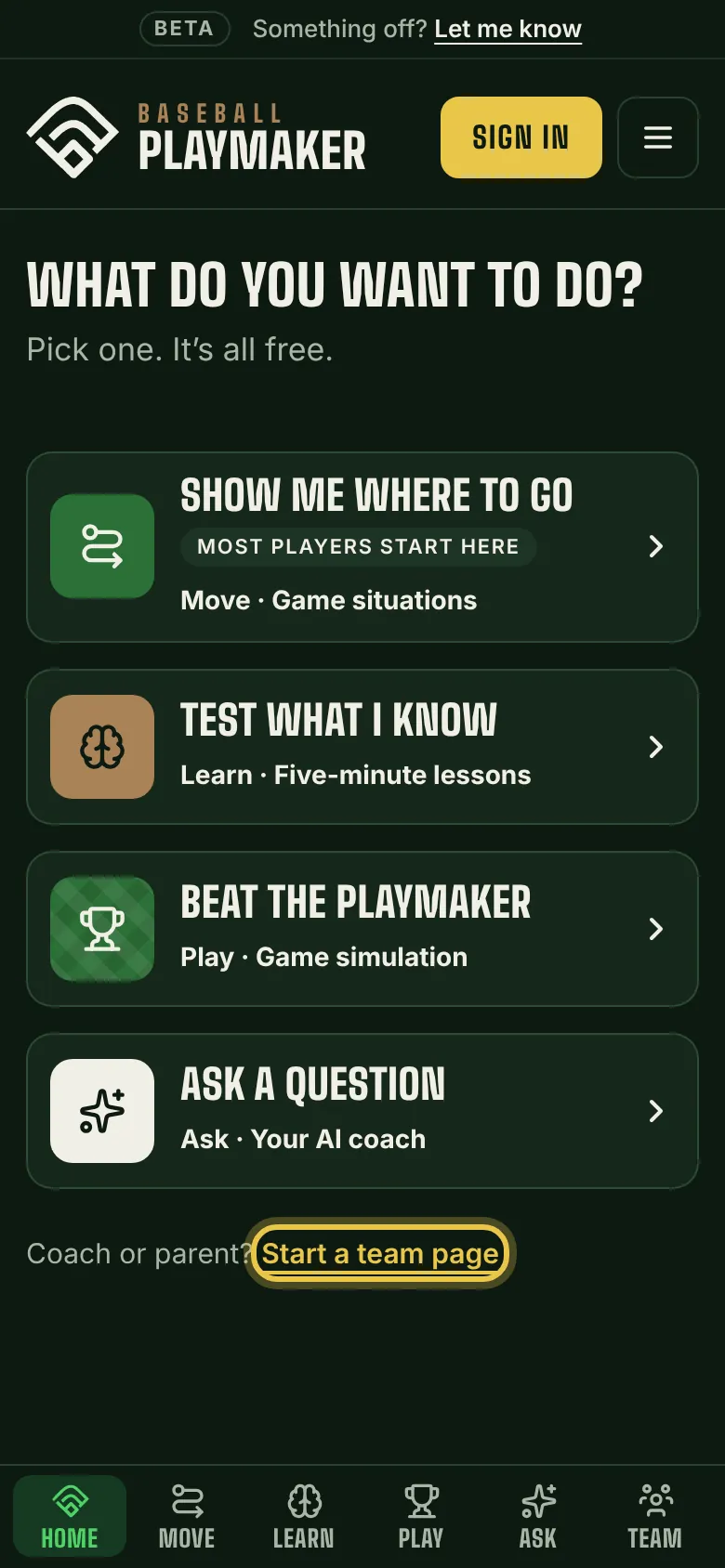
Open the app and tap Start a team page under the four big buttons. On the website, the Start a team page button does the same.
-
Step 2: Create your account
Tap Create account and enter your first name, last name and email. We email you a 6-digit code; type it in and you’re signed in. If you already have an account, tap Sign in.

-
Step 3: Name the team and pick the age group
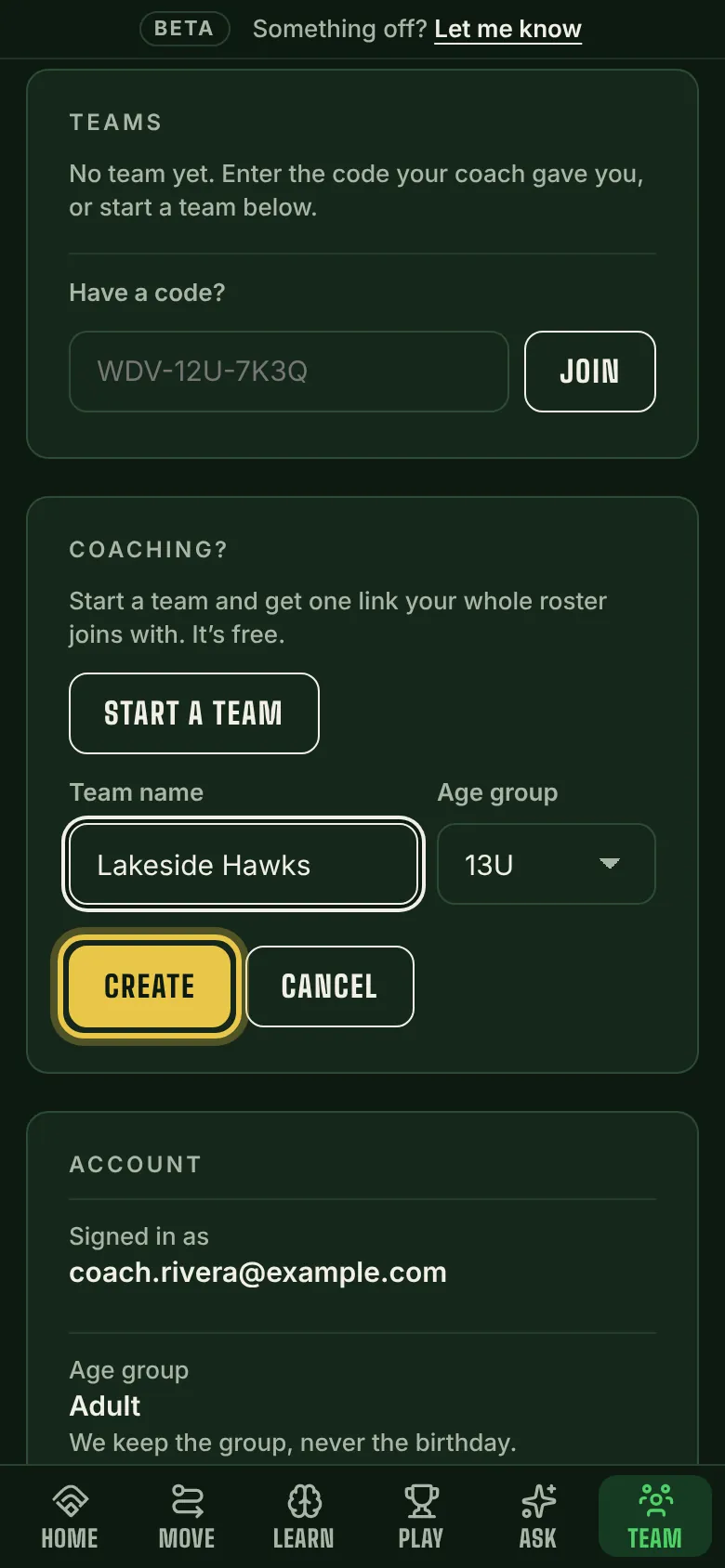
Type the team’s name (just the name, like “Lakeside Hawks”) and pick the age group from the list. If you type an age into the name, the app offers to move it to the age box for you. Tap Create.
-
Step 4: Share the team link
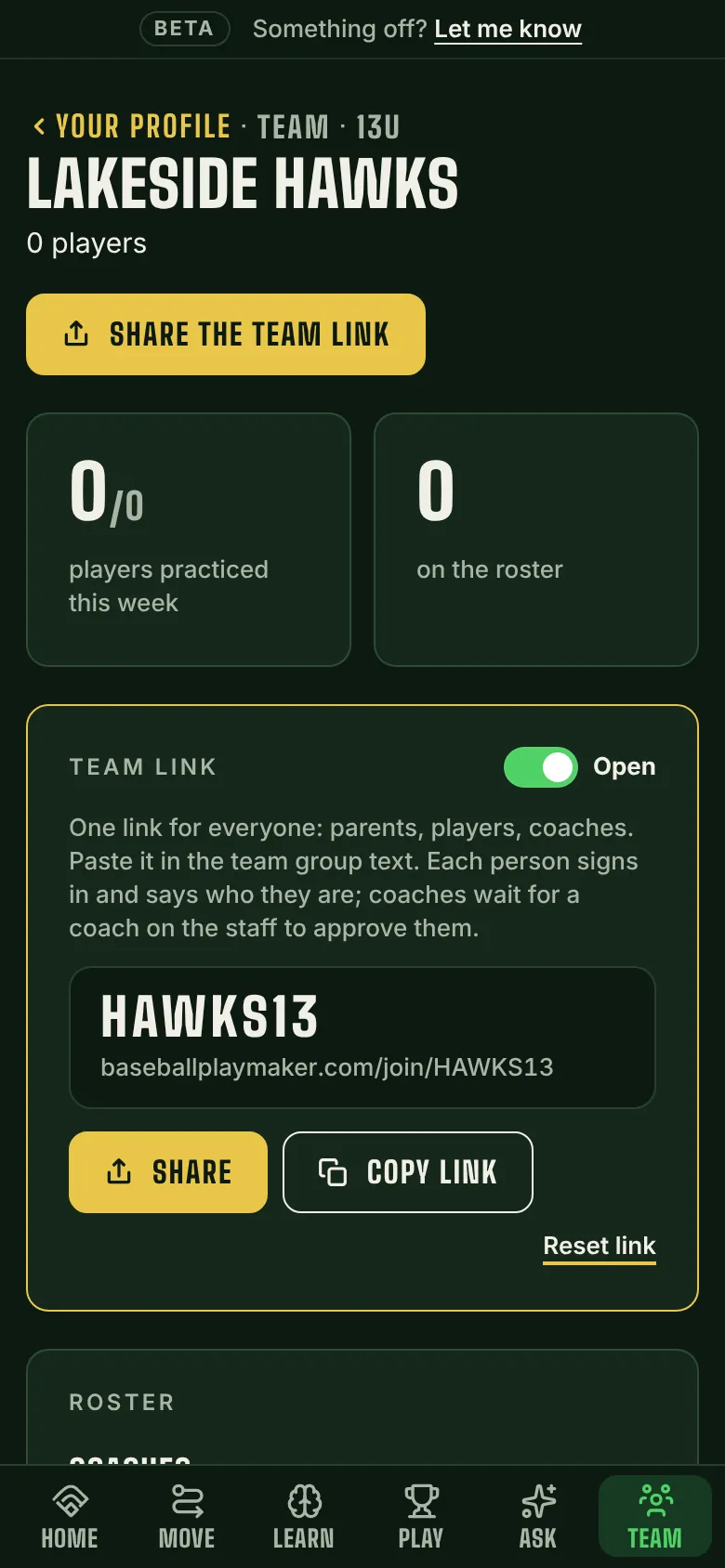
Your team page is ready. Tap Share the team link and paste it into your team’s group text. Everyone who opens it joins your team.
Good to know
- Start the page before your first practice. Players can join from their phones in the parking lot.
- One team page per team. A coach with a spring and a summer team makes two.
Read more
More how-tos
- How do I invite my players, parents and coaches?Share your team link. Everyone who opens it signs in, says who they are, and lands on your team. Assistant coaches get their own invite.
- How do I assign work to my team before practice?On your team page, tap New task, pick what it is (a play, a lesson, a game, a question or a clip), set a due date and add a note. It goes on every player’s start page.
- How do I make a play my own?In your team’s Playbook, tap Create a play, set the scene, and say what your team does differently. Playmaker redraws every changed job, and your players see your version.
Completely free
Start a team page
Works in any phone or computer browser. Nothing to install.