For coaches
How do I assign work to my team before practice?
On your team page, tap New task, pick what it is (a play, a lesson, a game, a question or a clip), set a due date and add a note. It goes on every player’s start page.
-
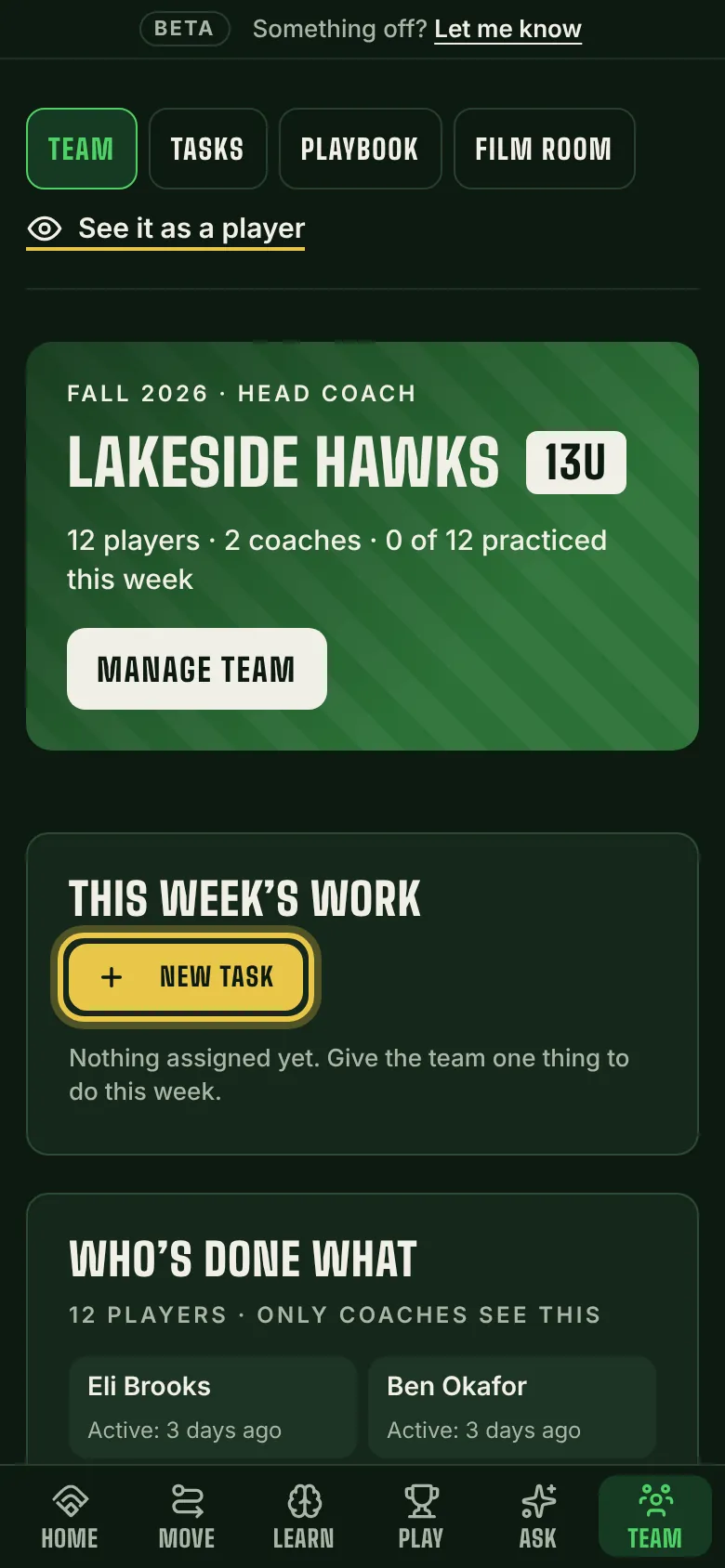
Step 1: Tap New task
On your team page, under This week’s work, tap New task.
-
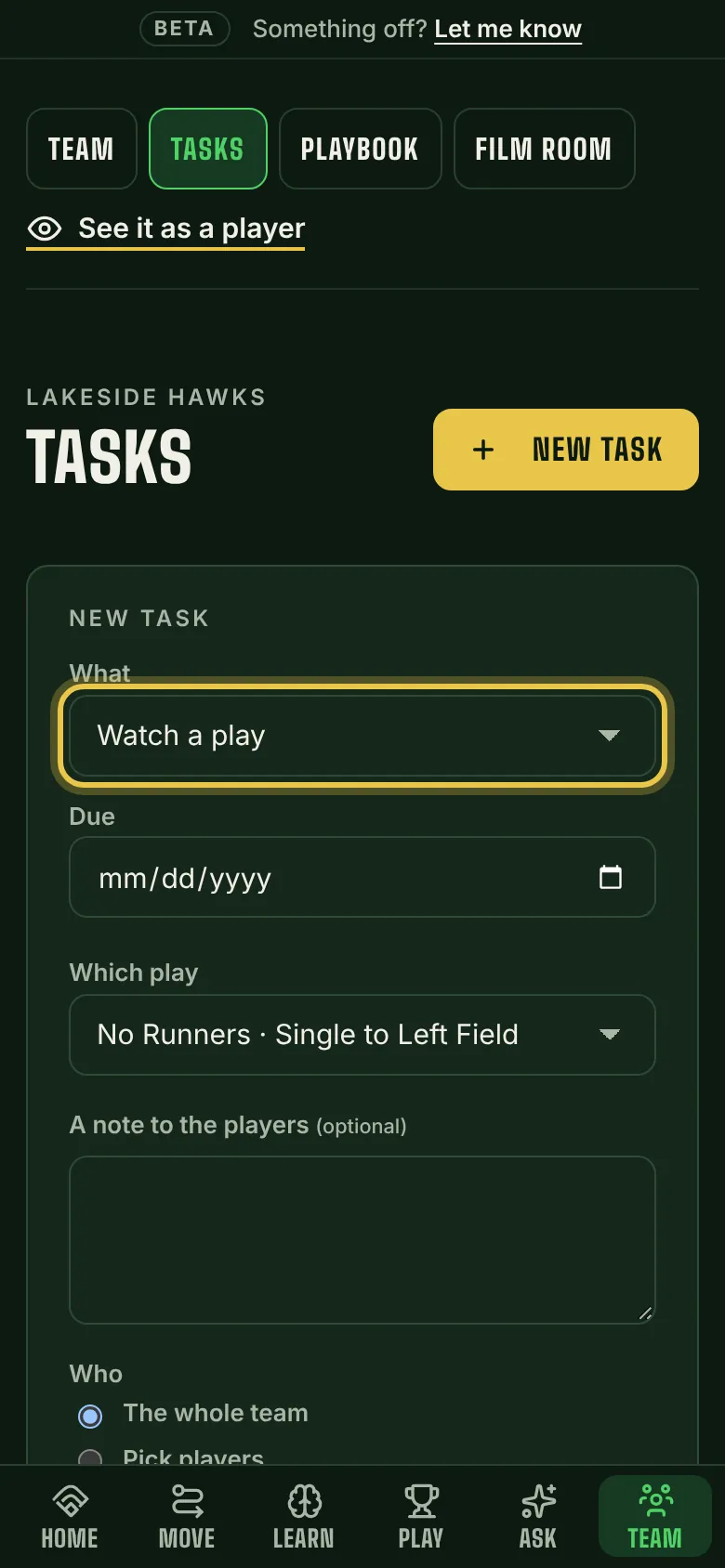
Step 2: Pick what to assign
Choose Watch a play, Do a lesson, Play a game, Ask the Playmaker or a Film room clip.
-
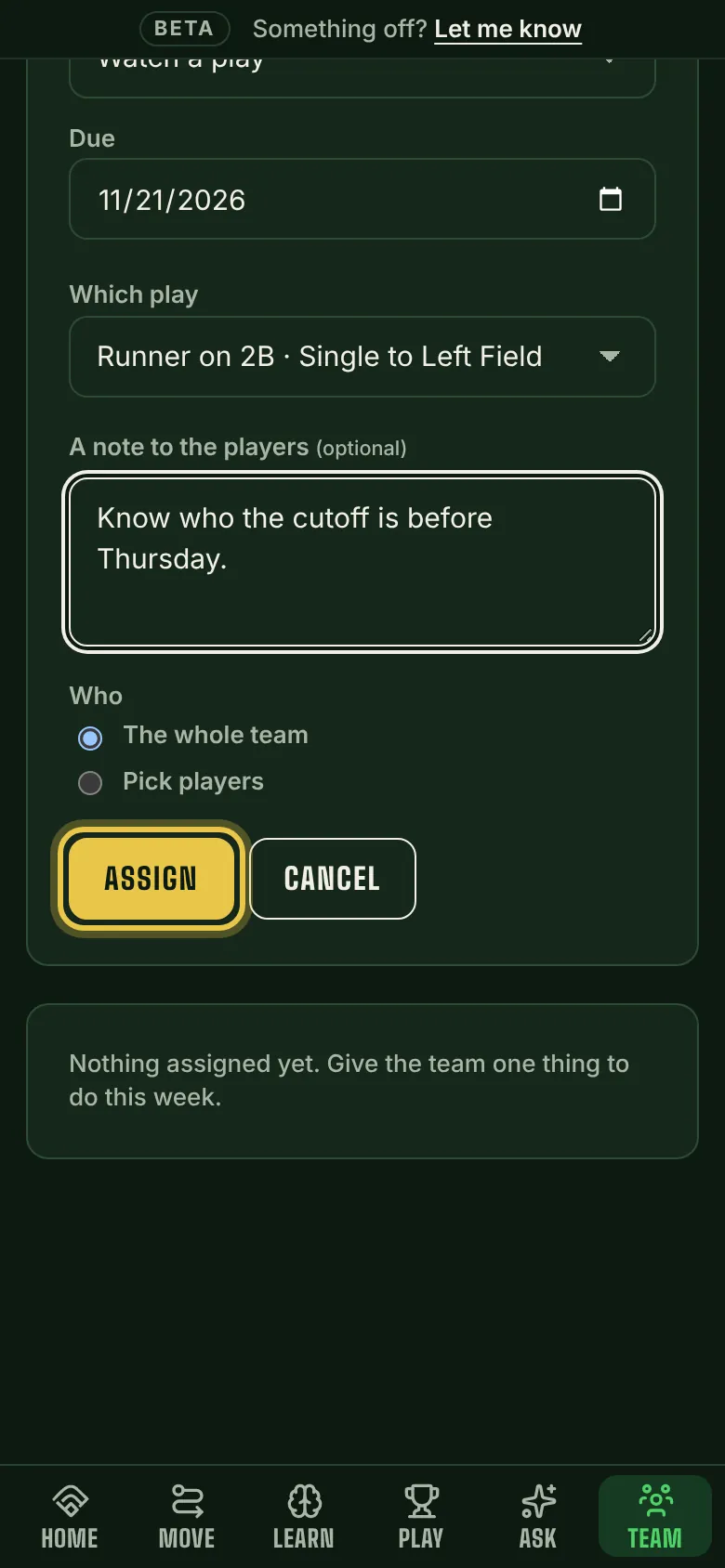
Step 3: Set it up and assign it
Pick the play (or lesson, or clip), set the due date and add a short note: what to look for, or why it matters. Leave it on The whole team or tap Pick players. Tap Assign.
-
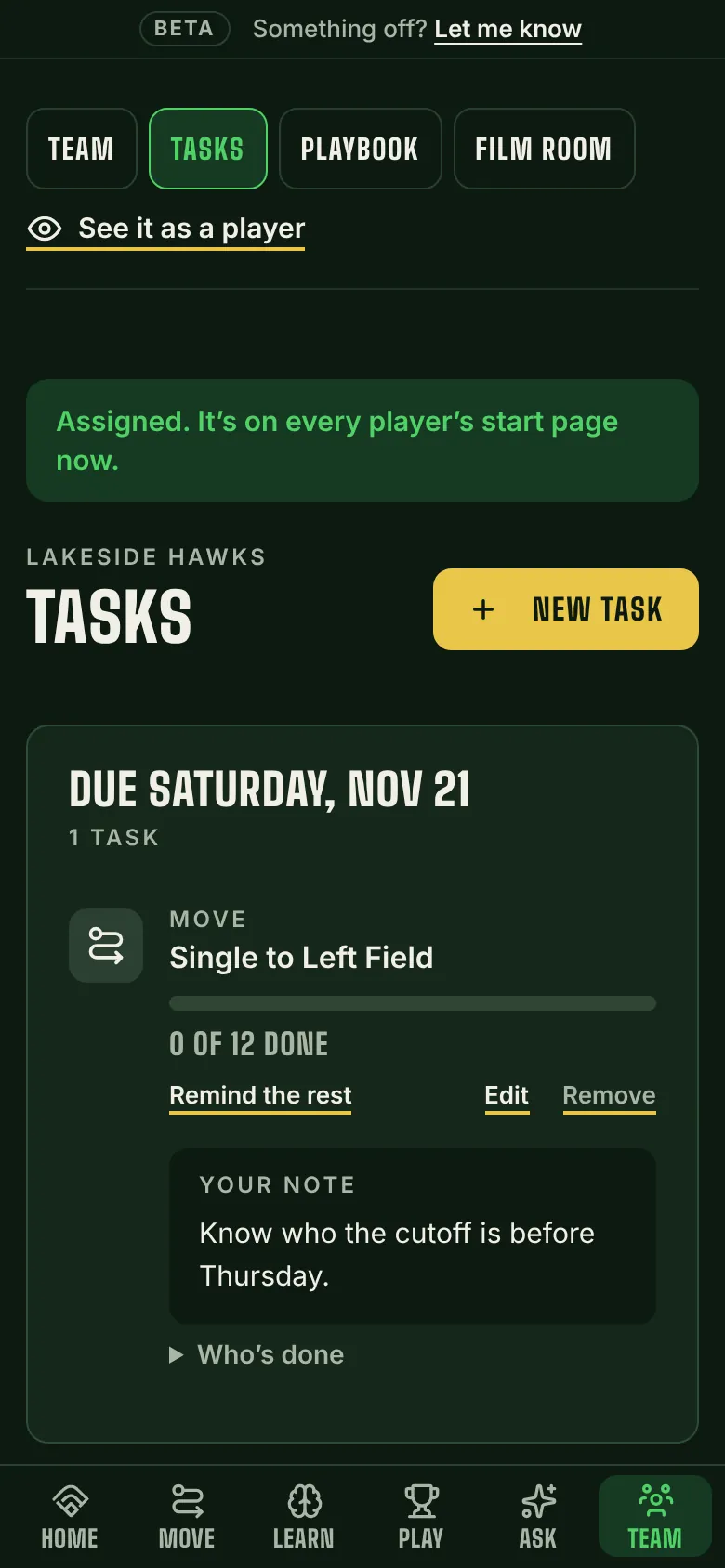
Step 4: It’s on their start page
Every player sees it under From your coach. It’s marked done by itself when they do it in the app. Nobody has to check a box.
Good to know
- Assign the play you’ll work on at the next practice. Players show up already knowing where to go.
- One or two tasks a week is plenty.
More how-tos
- How do I see who did their homework?Open Tasks on your team page. Each task shows how many players have done it, who they are, and a Remind the rest button that emails everyone who hasn’t.
- How do I see what my team gets wrong?Your team page shows the Learn questions your players miss most and when each player was last active. Tap Assign it to turn a miss into this week’s lesson.
- How do I share video clips with my team?Post YouTube or Instagram links in your team’s Film room, tag what each one is about, and pin the one you want everyone to watch to the top of the team page.
Completely free
Open your team page
Works in any phone or computer browser. Nothing to install.